Segmenting Datasets
You can segment additional datasets with a trained model at any time (see Training Classifiers for Segmentation for information about training a classifier).
You can also use the Segment with AI feature, which is available on the Segment tab, to preview and segment image data with a trained model (see Segment with AI).
- If required, choose Artificial Intelligence > Machine Learning Segmentation on the menu bar.
The Machine Learning Segmentation dialog appears.
- Select the required model and review the requirements in the Summary box (see Model Details).
Note If necessary, you can filter the list of models (see Models List for information about filtering the model list).
- Click the Input tab.
- Choose the required dataset(s) in the Dataset drop-down menu(s).
- Preview the segmentation, recommended.
- If required, you can make any of the classes visible or invisible by selecting or de-selecting the associated Visible option on the Model panel.
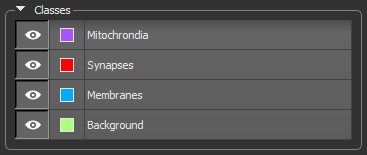
You can also change the color assigned to the applied highlight.
- Scroll to a representative image slice and then click the Preview button at the bottom of the dialog.
You should note that previews are calculated only on the visible portion of the image only.
- Modify the appearance of the segmentation on the Result panel, if required (see Result Panel).
- If required, you can make any of the classes visible or invisible by selecting or de-selecting the associated Visible option on the Model panel.
- Click the Segment button.
By default, a fully segmented multi-ROI will be generated and added to the Data Properties and Settings panel. You can also export a confidence map, if required (see Export).

 PRODUCT INFORMATION
